Desktop player — viewer guide
This page is for viewers using the Aliran desktop player on Windows or macOS — the public build that connects to any Aliran service. If you run the service itself, use the operator/developer page instead. Operators can link or copy this guide for their viewers.
1. What it is
The desktop player is a TV app for your computer. You sign in to a service that someone else operates — a channel lineup they curate — and you watch it fullscreen with a remote-control-style interface: channel numbers, zapping, favorites, a program guide.
One thing makes it different from an ordinary streaming app. The video travels peer-to-peer: while you watch, the app also shares pieces of the stream you've already received with other viewers of the same service. This is what lets a small operator serve many viewers without a big server. The app uses upload bandwidth while a channel plays — roughly comparable to the channel's own bitrate at most — and stops uploading when you close the app. See §8 for exactly what the app shares and what it doesn't.
2. Install
Your operator gives you the right file for your computer. Or, download the generic public build yourself from the project's releases page.
Windows needs Windows 10 or newer, 64-bit. Either file works, and both behave identically once running:
Aliran Setup <version>.exe— a normal installer. Run it, and the app lands in your Start menu. It installs per-user, so it needs no administrator prompt.Aliran-<version>-portable.exe— no install step. Put the file anywhere (Desktop, USB stick) and double-click it.
Windows may show a blue SmartScreen warning on first launch
The dialog says "Windows protected your PC" and lists the publisher as unknown. This happens because community builds aren't code-signed — signing certificates cost money, per publisher. If you got the file from your operator, click More info → Run anyway. If you got the file from somewhere you don't trust, don't run it.
macOS needs macOS 13 Ventura or newer. Pick the file that matches your
Mac's chip (Apple menu → About This Mac): …-arm64… for Apple silicon
(M-series), …-intel… for an Intel Mac. The .dmg is the normal route —
open it and drag Aliran into Applications. The .zip contains the same
app, already unpacked; double-click to run it.
macOS may block the app as unverified on first launch
These builds aren't notarized with Apple — the same paid-certificate reality as Windows — so the first launch shows "Aliran" cannot be opened. On macOS 15 or newer: close that dialog, open System Settings → Privacy & Security, scroll to the "Aliran was blocked" notice, and click Open Anyway (once per machine). On older macOS: right-click the app, choose Open, then confirm Open. Same trust rule as Windows — only do this if the file came from your operator or the project's releases page.
3. First run: connecting to your service
The app opens on a Connect screen and asks for three things. All three come from your operator — you don't need to figure out anything yourself:
| Field | What it looks like |
|---|---|
| Pairing code | 12 characters in three boxes of four, like A3K7-9QF2-M4XR — the boxes move you along as you type, and a pasted code fills all three |
| Username | your account name on that service |
| Password | your account password |
There's no server address or URL to enter. This isn't an oversight — the app finds your service on a global peer-to-peer network from the code alone. The code is public: it names the service, but it doesn't unlock anything. Your password is what signs you in, and it never leaves your computer in readable form.
Type the code in upper or lower case — either works. If your card shows an O
or an I, type it as you see it; the app reads them as zero and one.
Some operators hand out a panel key instead: 64 letters and digits
(0–9, a–f), e.g. e79c2…. Press Enter the 64-character panel key
instead and paste it there. Both routes reach the same service.
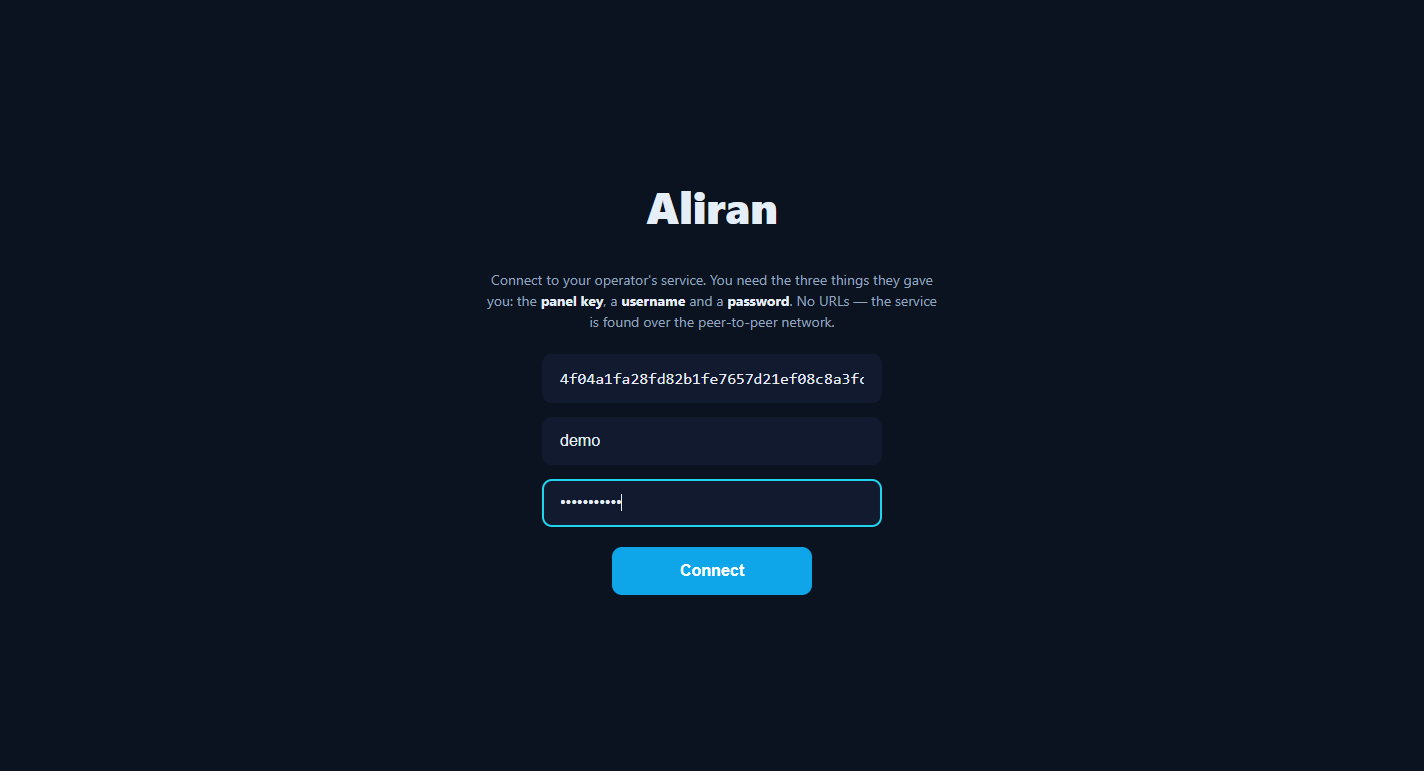
Press Connect. The first connection can take up to a minute while the app finds the network. After that, the app remembers everything, and every later launch goes straight to live TV. If the connection fails, see §9.
(The screenshots in this guide show a small demo service broadcasting colour bars. Your operator's channels appear the same way, with their own names, logos, and programs.)
4. Watching TV

The keyboard (like a remote) and the mouse both work everywhere in the app.
| You want to | Do this |
|---|---|
| Change channel | ↑ / ↓ — zaps through the whole lineup in channel-number order |
| Open the channel list | Enter or click the screen |
| Browse by category | in the list: ← into the category rail, ↑/↓, Enter; categories with › have sub-categories |
| See what's on / channel details | i (or right-click a channel row) — shows the program guide when the channel has one |
| Add/remove a favorite | f (or the ★ button on the bottom bar) |
| Subtitles / audio language | c (or the CC button) — shown only when the current channel actually carries tracks |
| Mute / volume | m toggles mute; the speaker button + slider on the bottom bar set the level |
| Go back / close a panel | Esc |
| Main menu (Favorites, Search, Settings) | Esc from fullscreen video |
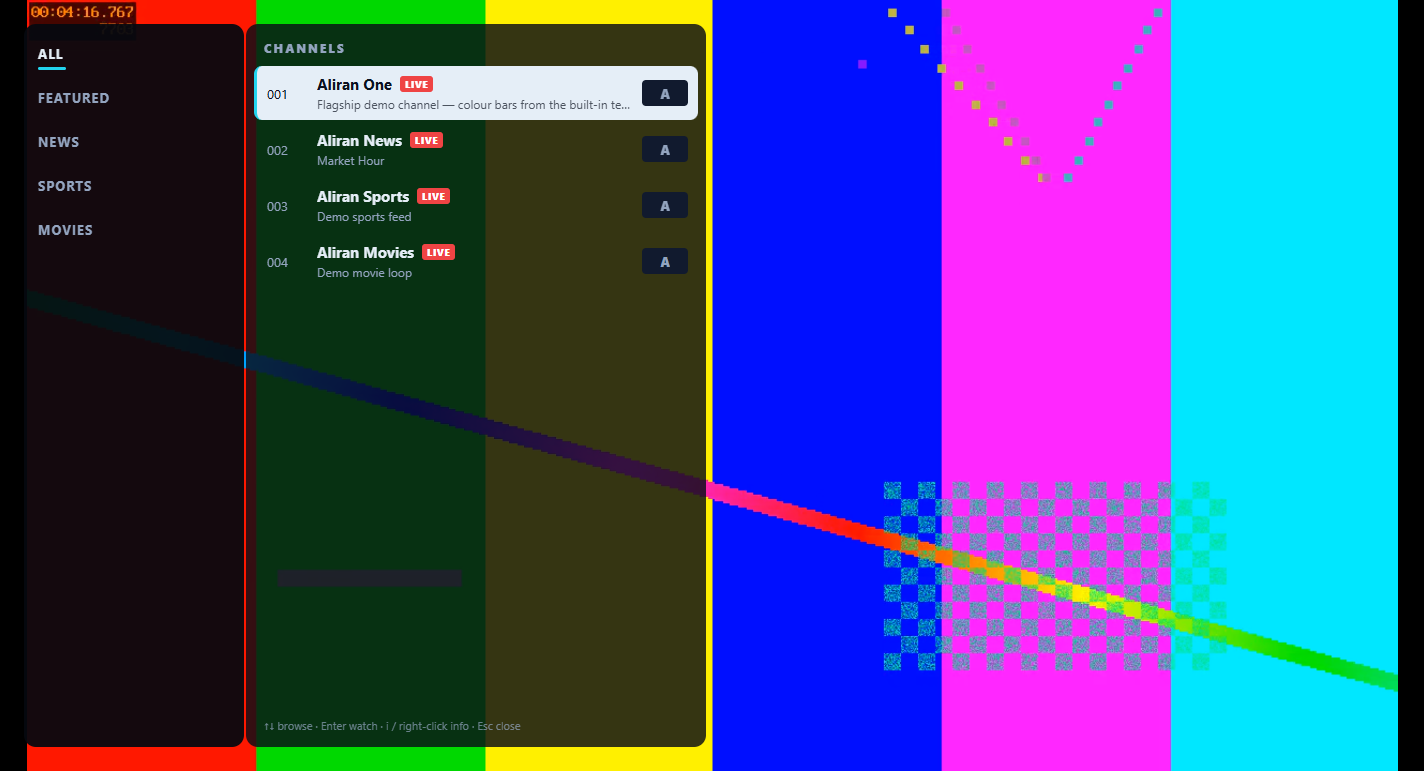
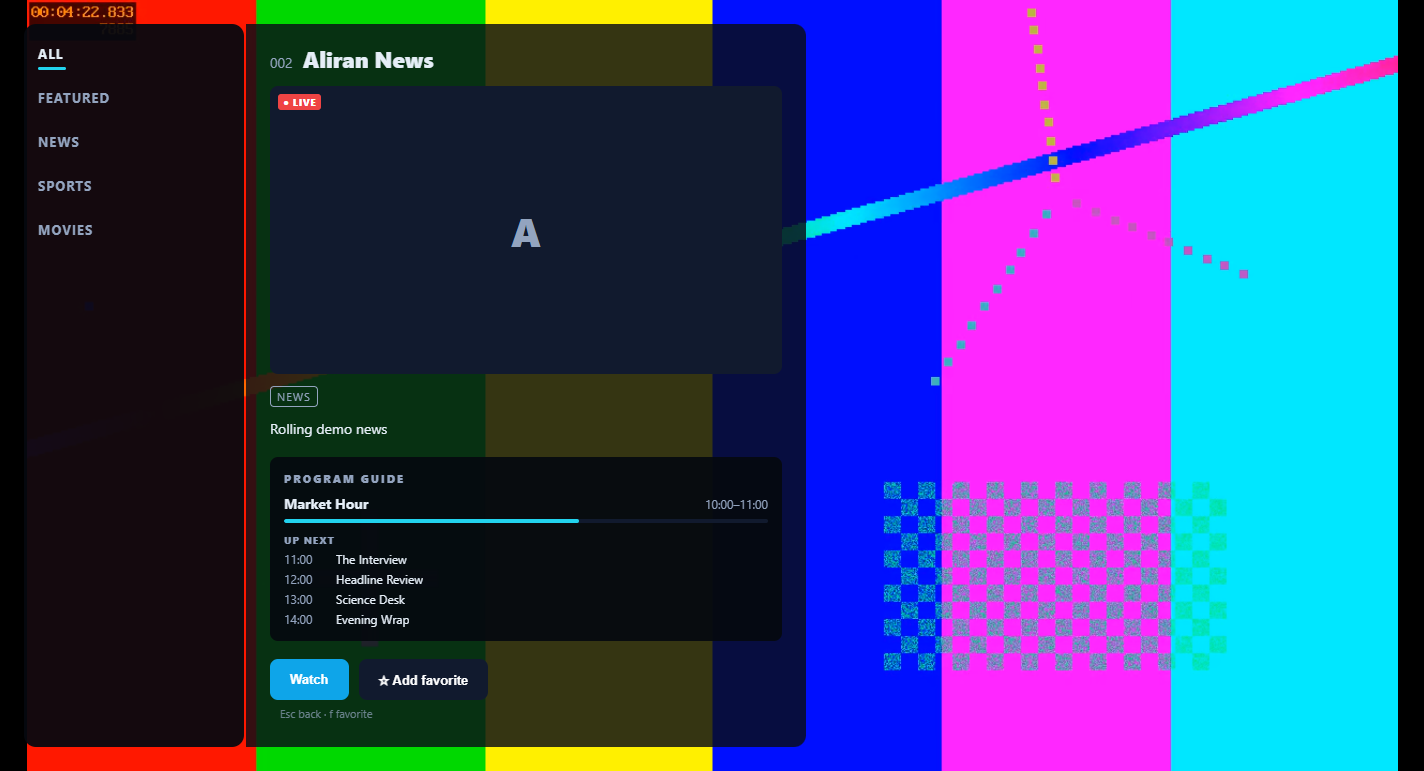
A few things are normal, not bugs:
- Browsing never stops playback. Panels overlay the video, and the list hides itself after a few idle seconds.
- Tuning takes a moment. The top-right pill shows progress while a channel starts. Channels near the one you're watching often start faster. The optional Smooth zapping setting (below) makes surfing near-instant.
- The bottom bar and mouse cursor fade out over clean video. Move the mouse or press any key to bring them back.
- If your service has on-demand titles (movies or shows, not live), they
play with a seek bar and a pause control.
Spacepauses; drag the bar to seek.
5. Movies & Series (if your service has them)
Some services add a Movies & Series tile to the main menu — an on-demand catalog next to the live channels. Inside it:
- The left menu switches between Movies, Series, and Search (search is its own view, with a result grid). The content pane has a tab bar — Recommended · My List · Genres · All — plus a "Sort by" chip that opens the sort menu (Recently added, A-Z, Newest releases, Oldest releases, Recently watched).
- On the A-Z sort, a letter rail appears on the right edge. Click a letter to jump there. The letter of what you're currently looking at stays highlighted as you scroll.
- My List: hover a poster and click the + that appears, or right-click the tile. You can also add a series from its detail page.
- Series open a detail page: pick a season, pick an episode, and it plays. Start plays the next episode from where you left off.
- Titles resume from where you stopped watching. The landing tab (Recommended) leads with a Continue watching row, so a film you backed out of is one click away.
- In the player: the controls fade out over clean video — move the mouse to
bring them back (pausing keeps them up). Under the progress bar sit
skip buttons (30 and 10 seconds, both directions) around play/pause;
Spacepauses,←/→seek,mmutes (the speaker button + slider set the level), andc(or the ⋮ button) picks a subtitle or audio language when the title carries one.Escgoes back.
Your list and your watch history are stored only on this computer. The app never sends them to your operator or to anyone else.
6. Settings worth knowing
- Smooth zapping — preloads neighboring channels while you watch, so
↑/↓feels instant. It costs extra download bandwidth while a channel plays, which is why it's off by default. It also pauses itself automatically if your connection is struggling or marked as limited. - Sign out — forgets your saved sign-in on this computer (use it on a shared computer). The service key stays, so the next person only needs to sign in.
- Change service… — forgets both the service key and the sign-in, and restarts the app back to the Connect screen. Use it to switch to a different operator.
- Diagnostics — shows whether the current channel comes peer-to-peer
(
P2P, with a peer count) or from a direct internet source (CDN).
7. Your account and devices
Your operator sets a device limit for your account (commonly a few devices). Each computer or phone you sign in on takes one slot. Going over the limit signs out the oldest device. If you're unexpectedly signed out, this is the usual cause — sign in again, or ask your operator to raise your limit.
8. Privacy & bandwidth, honestly
- What the app uploads: encrypted pieces of the streams you watch, or recently watched, served to other viewers of the same service. Nothing else. The app cannot upload anything you didn't already download as part of watching.
- What others can see: other viewers' apps see an anonymous peer serving stream data — not your name, account, or watch history. Your operator, like any streaming provider, knows your account and what it's entitled to.
- Your password is processed with a cryptographic protocol (OPRF) that never sends it in readable form. Not even the operator's server sees it.
- Your saved sign-in is encrypted with Windows' own user-account protection (DPAPI). The service key itself is stored as a plain setting, since it's public anyway.
- Metered connections: Windows doesn't reliably tell apps when a connection is metered. If you're on a hotspot or a capped plan, the practical advice is to close the app when you're not watching — the app only uploads while it runs.
9. When something doesn't work
| Problem | What it means / what to do |
|---|---|
| Connect fails after ~1 minute: "Cannot reach the service" | Either you have no internet, your network blocks peer-to-peer traffic (some office/hotel networks do), or you mistyped the panel key. Re-paste it carefully — all 64 characters. |
| "Invalid credentials" | Your username or password is wrong. Both are case-sensitive. Ask your operator to reset it if needed. |
| A channel shows "can't decode this channel's video format" | That channel broadcasts in a format your computer's graphics hardware can't decode — usually HEVC/H.265 on older computers. Other channels keep working; there's nothing to configure. |
| Picture freezes for a few seconds, then recovers | This is normal self-healing after a network hiccup. The app reloads at the live edge, and reconnects deeper if that's not enough. |
| "…is not broadcasting right now" | The channel exists, but the operator isn't feeding it at the moment. Try again later. |
| Channel list is missing channels you expect | Your account isn't entitled to them, or a new grant hasn't applied yet. Sign out and back in, or ask your operator. |
| The app opens on Connect again out of nowhere | Someone used Change service…, or your Windows user profile was reset (this also invalidates the encrypted sign-in — reconnect once). |
| Two copies won't run at once | This is by design. The second launch focuses the first window instead. |
10. Uninstall / full reset
Installer build: uninstall from Windows Apps as usual. Portable build: delete the exe.
App data — the service key, sign-in, favorites, and stream cache — lives in
%APPDATA%\aliran-desktop. Close the app, then delete that folder for a
complete factory reset. The stream cache inside it is disposable; you can
delete it safely at any time.